User guide / My profile & AI assistant / Connecting my AI assistant
Getting startedConnecting my AI assistant
You can connect your AI assistant and talk to Gladys directly.
3 min read updated October 2026
Gladys can connect to your favourite AI assistant through the MCP (Model Context Protocol). Once connected, your assistant accesses the data you already see in Gladys and can act for you: check your tasks, write a meeting report, answer a question about a project, etc.
Opening the Connectors area
- 1Click your name at the top right of the screen.
- 2Select AI connector in the menu that opens.
Getting the connector address
The Connect an AI area shows the unique address of your Gladys connector, to copy and paste into your assistant's settings:
https://mcp.gladys.com/
This address is the same whichever assistant you choose.
The AI only accesses the data you already see in Gladys — it can neither see nor change more than what you yourself have access to.
Choosing your assistant
The steps vary slightly depending on the assistant. Menu labels may also vary with your assistant's version.
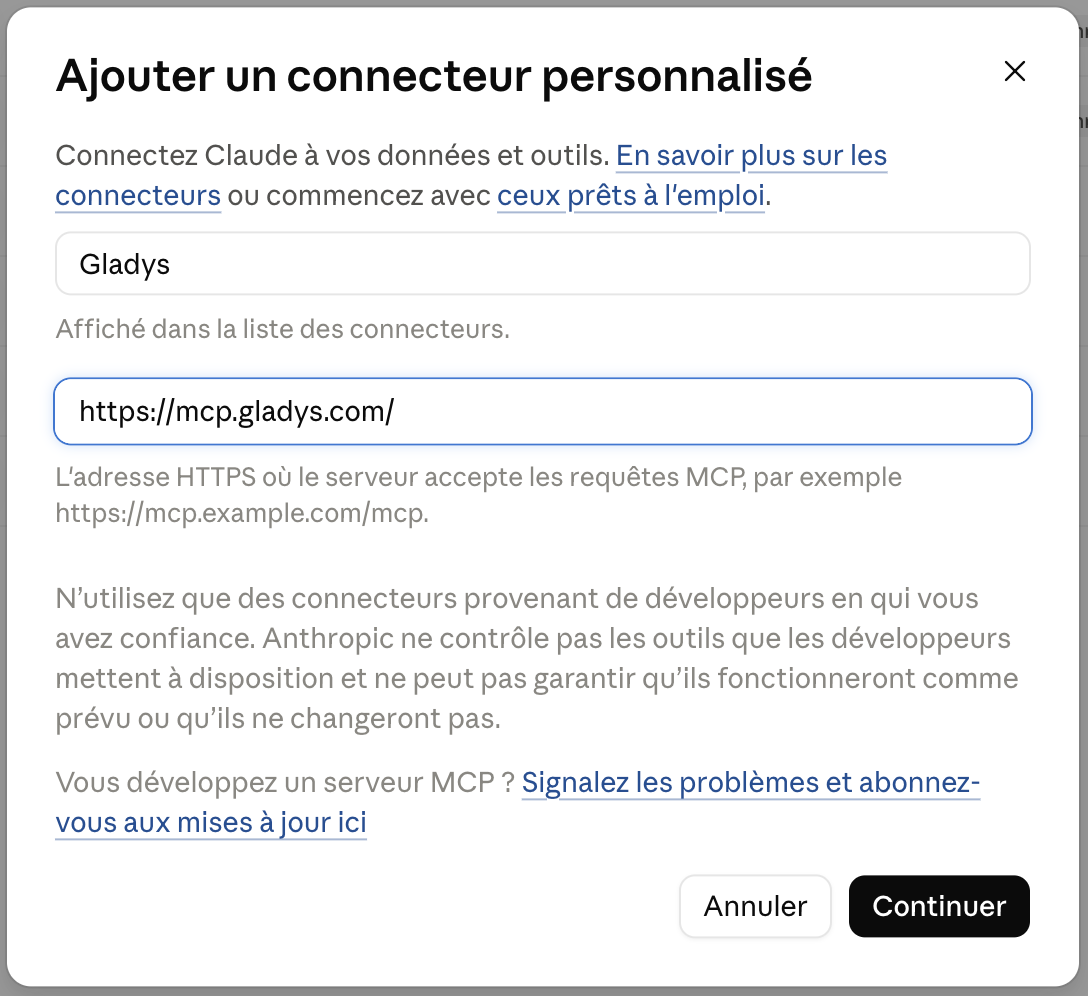
Claude
Also available on the free plan, limited to one connector.
- 1Open Claude, then Settings → Connectors.
- 2Click "Add custom connector".
- 3Name it "Gladys" and paste the address above.
- 4Confirm: a Gladys page opens, click "Allow".
ChatGPT
Requires a paid ChatGPT plan (Plus, Pro, Business…). Not available on the free plan.
- 1Open ChatGPT, then Settings → Apps (or Connectors), and enable developer mode in the advanced settings.
- 2Click "Create", name the connector "Gladys" and paste the address above.
- 3Confirm: a Gladys page opens, click "Allow".
Le Chat (Mistral)
Also available on the free plan.
- 1Open Le Chat, then Intelligence → Connectors → "Add a connector".
- 2"Custom MCP connector" tab: name it "Gladys", paste the address above and choose OAuth authentication.
- 3Confirm: a Gladys page opens, click "Allow". Then enable Gladys in "Tools" for each conversation.
Gemini
Gemini is not yet fully MCP-compatible: the connection goes through the CLI (command-line tool), not the web app.
- 1Install Gemini CLI, Google's command-line tool (recent version).
- 2Add Gladys to the
~/.gemini/settings.jsonfile as in the example below, with the httpUrl key (noturl). - 3Restart Gemini CLI: on first use, your browser opens Gladys to authorise the connection.
- 4Type
/mcpin Gemini CLI to check that Gladys is connected and see its actions.
{
  "mcpServers": {
    "gladys": { "httpUrl": "https://mcp.gladys.com/" }
  }
}
The Gemini app (gemini.google.com) does not let you add this type of connector. To use Gemini in Gladys without installing anything, your organisation can enable the built-in AI assistant with a Gemini key.
Managing tool permissions
Once connected, you choose precisely what your assistant is allowed to do in Gladys, tool by tool (create a task, add a comment, archive a project…):
- ✅ Always allow — the action runs without confirmation
- ✋ Ask every time — your assistant asks for confirmation before each action
- ⛔ Deny — the tool stays unavailable to your assistant
Checking and disconnecting your connected AIs
The Connectors area lists all the assistants currently connected to your Gladys account, with their latest activity. You can revoke access at any time by clicking "Disconnect" next to the assistant concerned.
Your data stays under control
Your assistant acts with your permissions in Gladys: it sees and changes exactly what you can see and change yourself, no more. Access can be revoked at any time, and every action taken by your assistant is logged, just like your own actions in the tool.
Frequently asked questions
Can I connect several assistants at the same time?
Yes, you can connect Claude, ChatGPT, Le Chat and/or Gemini to your Gladys account simultaneously.
Can I change permissions after connecting?
Yes, at any time from the Connectors area, in the "Tool permissions" section.
How do I revoke an assistant's access?
Click "Disconnect" next to the assistant concerned, in the Connectors area.