Organise your team’s tasks without losing track
Requests come in by email, chat and meetings. Tasks get scattered across notebooks, spreadsheets and sticky notes. The result: chasing people, forgetting things, doing the same work twice. Gladys gives every team a space where work is visible, shared out and followed up.
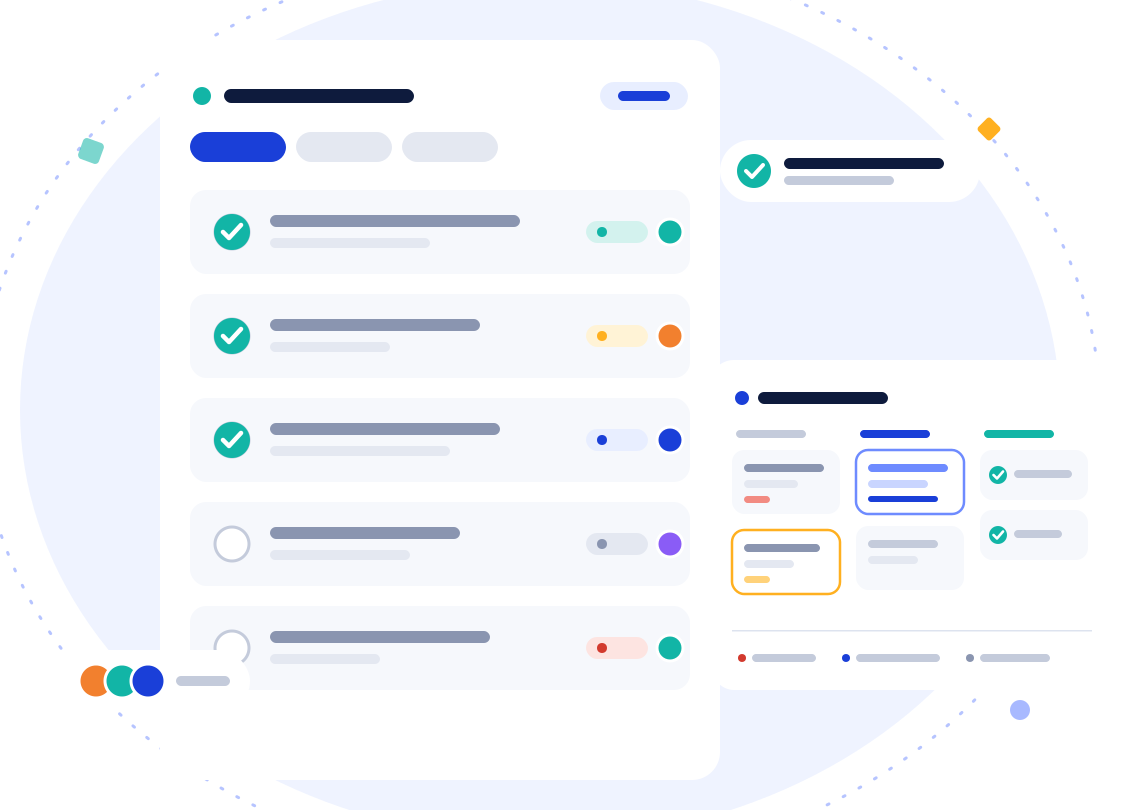
Organise your work
-
Tasks and subtasks
Assigned to one or more people, with a due date and a priority.
-
Lists
To group work by topic, by week or by type of request.
-
My tasks
Everyone finds everything waiting for them, across all projects.
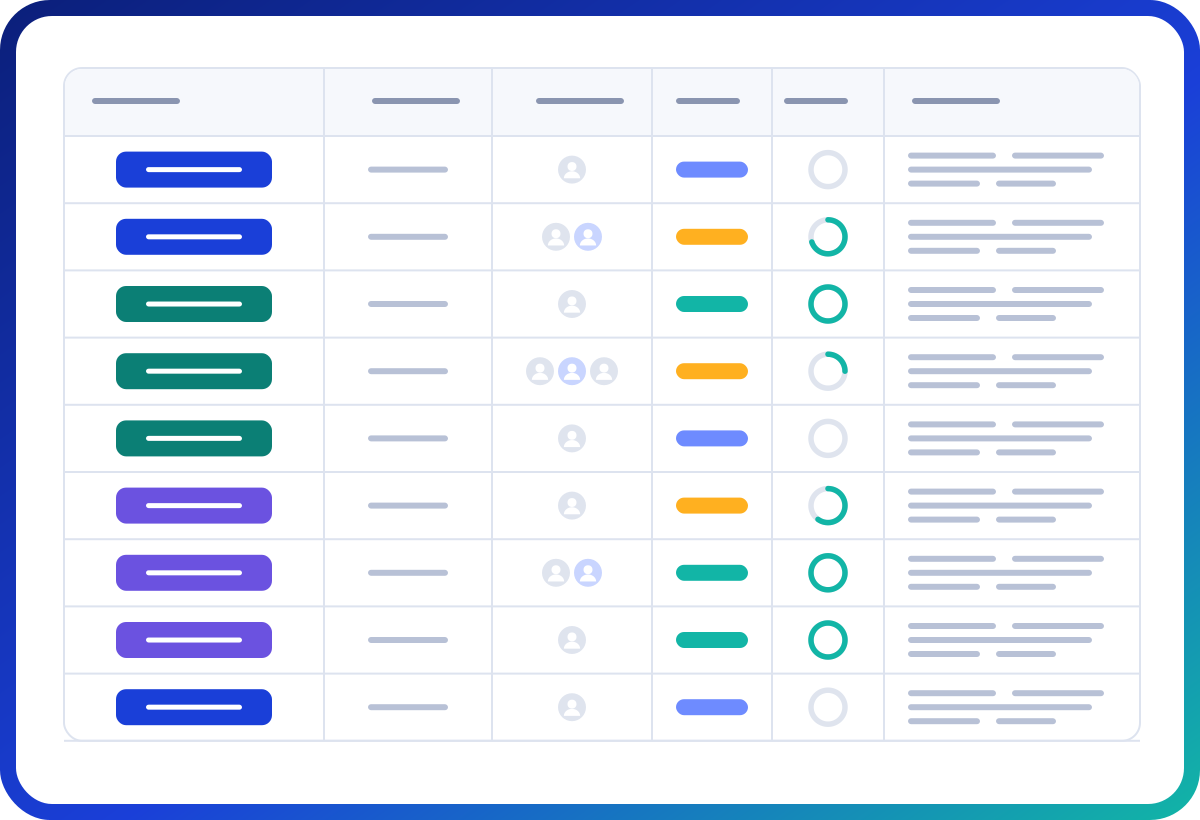
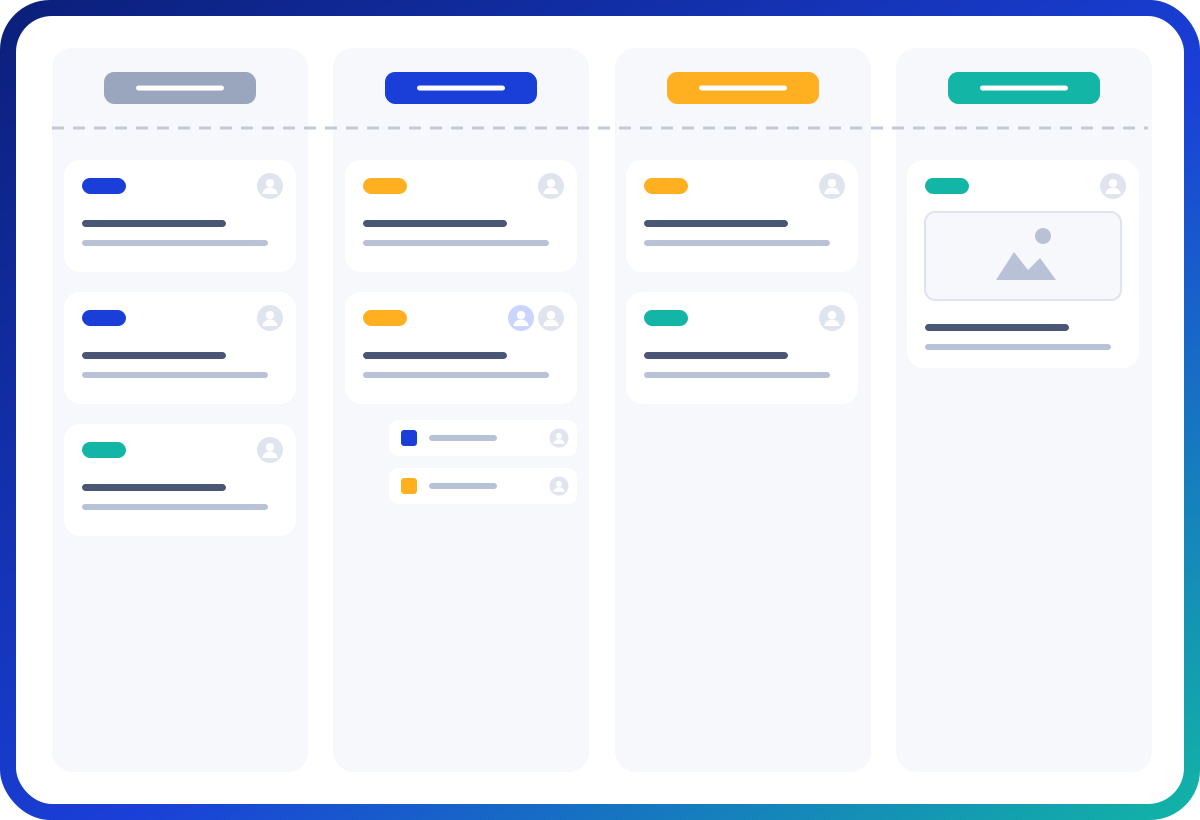
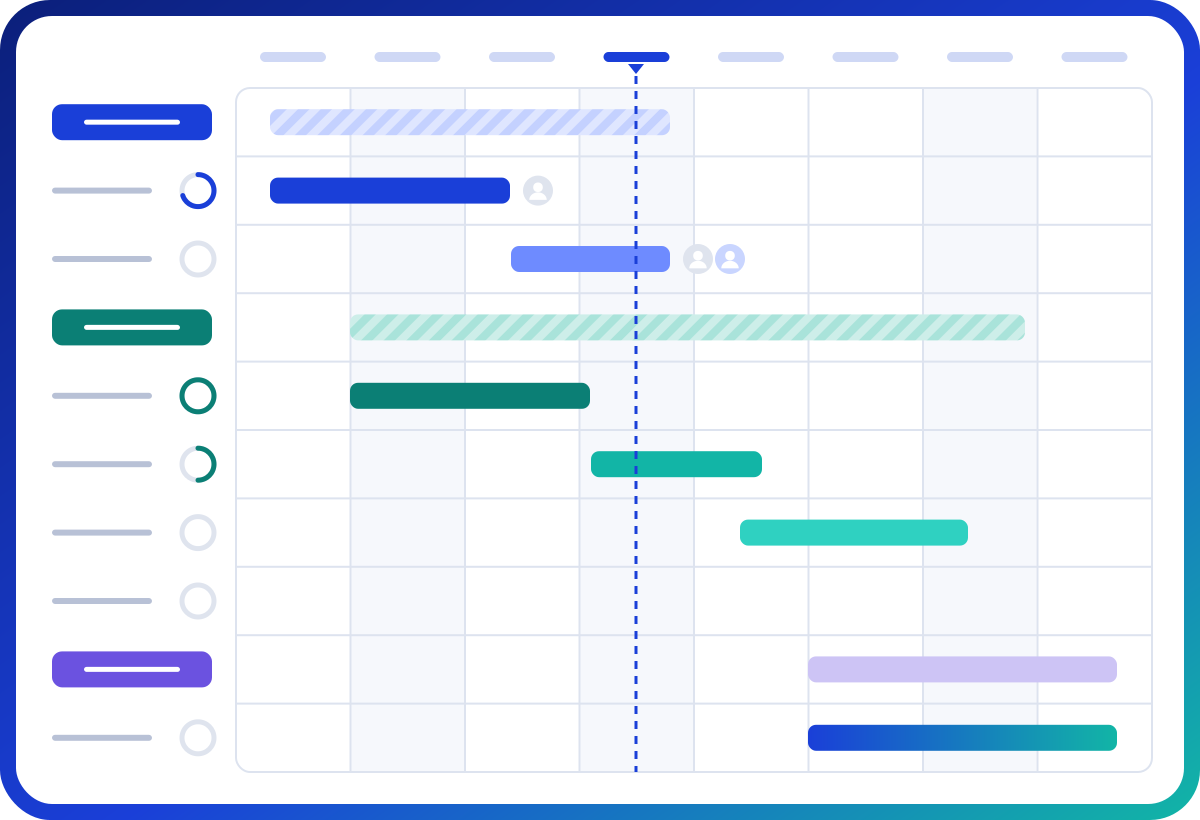
Four views, one space
Each member chooses how to see the same work, in the same project:
-
Board
Organise tasks freely.
-
Kanban
Follow progress, from “to do” to “done”.
-
List
Sort and filter to find a task in seconds.
-
Gantt
Place work on a timeline and see the deadlines.
In every view, filters, sorting and grouping by list let everyone find what is waiting for them in seconds, without changing how the project is organised for others.
Work with the whole team, and beyond
-
Conversations in the right place
Discussions and mentions right on the project or task, rather than in email threads.
-
Shared documents
Stored with the work they relate to.
-
External partners
Invited to a specific project, with limited permissions: contractors, clients, other departments.
-
Notifications
To be told about what concerns you, without being swamped.
And when activity becomes a project
A request grows, a piece of work takes shape? Move on to project management in the same tool: detailed schedule, resources, budget and reports. See Project management.
Get started in minutes
- 1
Create a project for your team or department, blank or from a template.
- 2
Add your lists and tasks, by hand or with the Excel import if they already live in a spreadsheet.
- 3
Invite the team and, if needed, your external partners with limited permissions.
- 4
Choose your view and get to work: everyone keeps their own, on the same project.
The calendar and mind map views complement the four main views, to see the month’s deadlines or organise the ideas for a new piece of work.
Conversations without leaving the work
Every project has its discussion, and every task its comments. An @ mention notifies the person concerned, in the app, by email and on mobile. Attached files and co-edited documents stay next to the task: when someone picks up a topic, they find the whole history in one place, without digging through their inbox.
What everyone gains
-
Team members
know what they have to do and by when, and find all their tasks in one place.
-
The team lead
sees who is doing what, spots delays and shares out the work without chasing people by email.
-
External partners
follow only what concerns them, with no access to the rest of the organisation.
-
Management
finds the teams’ activity in the same place as the projects, whenever it needs an overview.
Who is it for?
-
Support and administrative teams
Handling recurring requests.
-
Local authority departments
Coordinating work between staff. See Gladys for local authorities.
-
Teams that have outgrown Trello
Wanting a tool that grows with them. Read our article Trello alternative.
What our customers say
Gladys is an intuitive tool that makes visual project tracking simple. It is very quick to get started with, and the interface is very pleasant.
Frequently asked questions
How many members can I invite?
As many as you like: projects and members are unlimited on every plan.
Can we work with people outside the organisation?
Yes, by inviting them to a project with an editor or viewer role.
Does Gladys replace Teams or Slack?
For work-related conversations, yes: they stay attached to the project. Read our article Microsoft Teams alternative for managing your projects.
Can we bring in tasks that live in a spreadsheet?
Yes, with the Excel import (guide “Importing projects from Excel”): tasks, owners and dates are created in one go.
Which plan for a team that mainly manages tasks?
The Essential plan (€12 per user per month) covers tasks, all the views and the Gantt chart. See pricing
Can I see my tasks from every project?
Yes: everyone has a view that gathers their tasks from all projects, with overdue tasks, this week’s and upcoming ones.
Can tasks have subtasks and several owners?
Yes: a task can be broken into subtasks, assigned to one or more people, and given a due date and a priority.
Can we attach files to tasks?
Yes, and Word, Excel and PowerPoint documents are co-edited directly in the project.
I'm interested and would like to know more about the solution