User guide / My profile & AI assistant / Editing my profile
Getting startedEditing my profile
Avatar, email, notifications, first name, last name, colour theme, text size and interface language.
2 min read updated October 2026
All the actions related to your account are in a single menu, at the top right of the interface. It lets you edit your profile, change your password or sign out of Gladys.
Opening your account menu
- 1Click your name (for example Gladys Tutorial) at the top right of the screen.
- 2A menu opens with three options: Profile, Password and Sign out.
Editing your profile
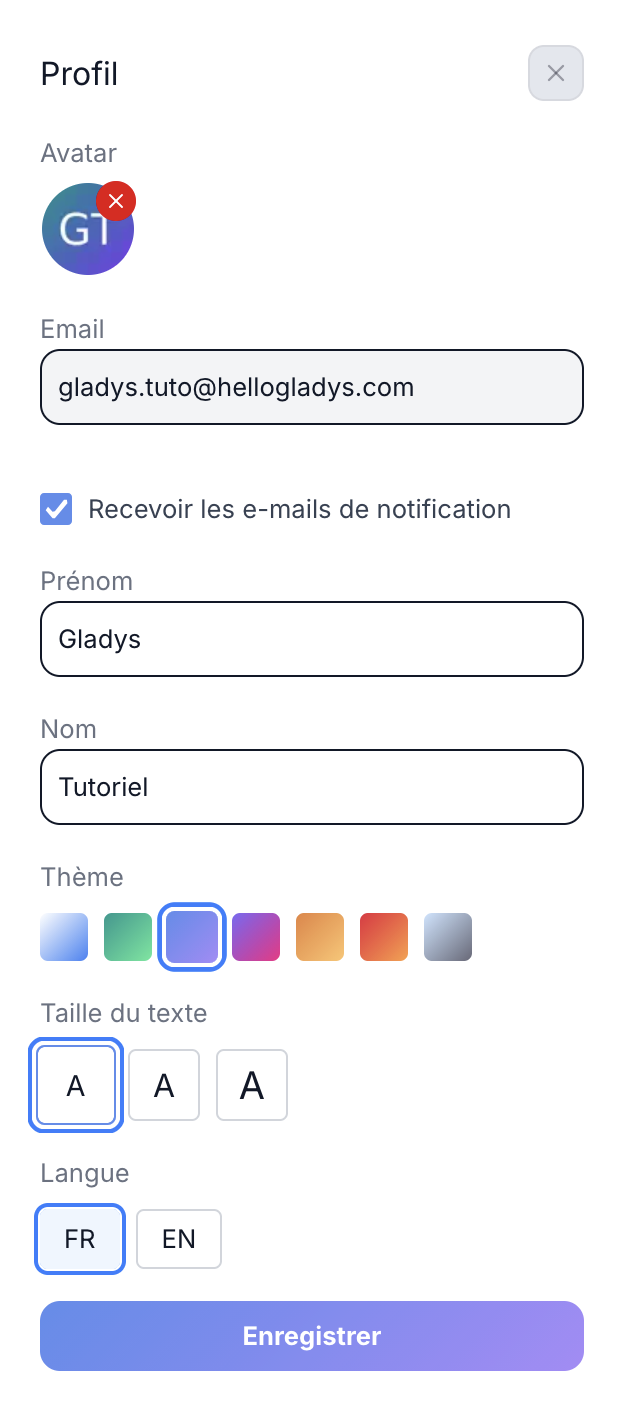
When you select Profile, a side panel opens with your information:
- Avatar — your photo or initials. A red ✕ icon on the avatar removes it.
- Email — the address linked to your account.
- Receive notification emails — a checkbox to turn email alerts on or off, in addition to in-app notifications.
- First name and Last name — editable directly.
Customising the appearance
The Profile panel offers 7 colour themes to customise the interface. Three text sizes are also available (small, medium, large) to adapt reading comfort to your screen.
Changing the language
Gladys is available in French (FR) and English (EN). The change applies to the whole interface as soon as you save.
Good to know: remember to click Save at the bottom of the panel after each change (information, theme, text size or language).
Changing your password
From your account menu, select Password to open a dedicated panel:
- 1Enter your Current password.
- 2Enter your New password (an eye icon shows it in clear).
- 3Confirm it in the Confirm password field.
- 4Click Save.
Your new password must meet the following criteria, shown in real time as you type:
- At least 8 characters
- At least one uppercase letter
- At least one lowercase letter
- At least one digit
- At least one special character (@$!%*?&)
A Back to profile link, below the Save button, takes you back to the Profile panel without changing page.
Signing out
The Sign out option, in red in the menu, ends your session on this device. You will need to re-enter your credentials (or use Google, LinkedIn or GitHub) to sign in again.
Frequently asked questions
Can I change my avatar without removing it first?
Yes, click the ✕ icon to remove the current avatar, then upload a new one in the same place.
What happens if my new password doesn't meet all the criteria?
The Save button stays disabled until all 5 criteria are met (shown in green once fulfilled).
Does signing out sign me out of all my devices?
No, signing out only applies to the device and browser on which you click the button.