Talk to Gladys: connect Claude, ChatGPT, Le Chat or Gemini to your projects
What if you could simply ask Gladys? Your AI assistant can now talk to your projects to create tasks, follow progress and generate reports.
3 min read
One week after launching the new version, we keep moving forward. Today, Gladys opens up to a new way of working: you can now connect your AI assistant to Gladys and talk to your projects in natural language.
No more clicking everywhere to find a piece of information or create a task. You ask, your assistant does it, directly in Gladys.
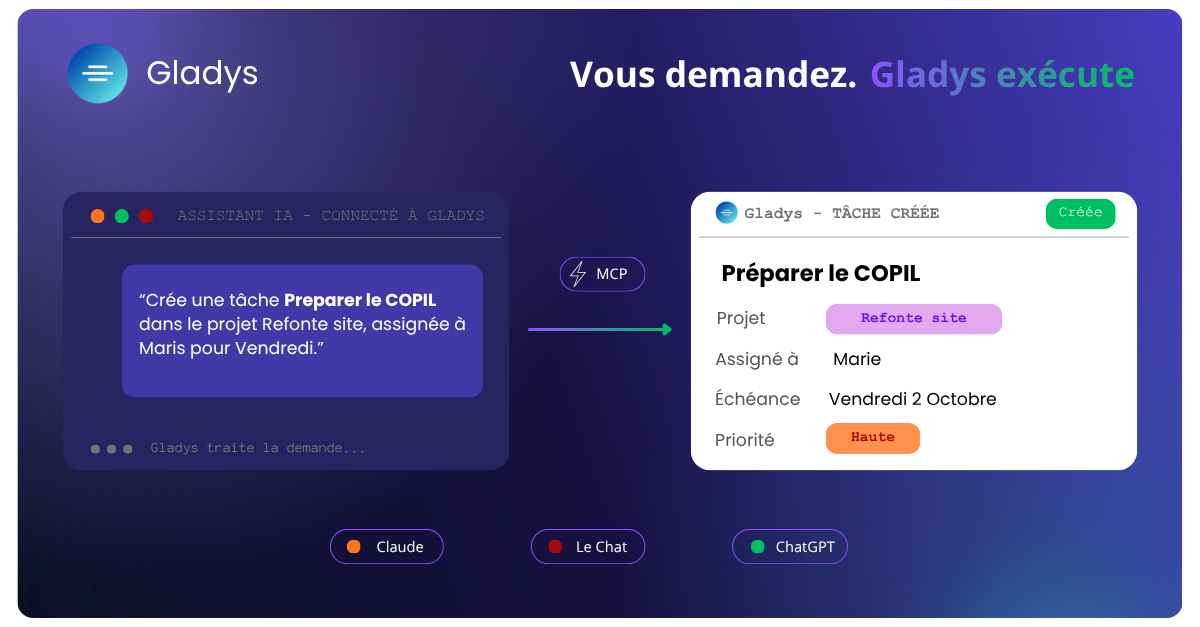
Works with your favourite assistants: Claude, ChatGPT, Le Chat (Mistral) and Gemini can now connect to Gladys, through the MCP (Model Context Protocol) — an open standard that lets an AI assistant talk to third-party tools securely.
Note on Gemini: Gemini is not yet fully MCP-compatible — the connection to Gladys may be more limited than on Claude, ChatGPT or Le Chat, until Google provides full support.
What you can ask your AI
Once your assistant is connected, it accesses your Gladys projects and can act for you. A few concrete examples:
🗂️ Managing your projects and tasks
- "What are my overdue tasks this week?"
- "Create a task Prepare the steering committee in the Website redesign project, assigned to Marie, for Friday."
- "Move the task Mock-ups V2 to 'In progress' and set it to high priority."
- "Split this task into three subtasks."
💬 Communicating with the team
- "Summarise the latest messages in the Roll-out project."
- "Post a message in the project to let the team know the delivery is delayed."
📊 Steering and generating reports
- "Give me a progress update on the Website redesign project."
- "Where does the Operations portfolio budget stand?"
- "Who will be overloaded in the team next month?"
- "Prepare a summary report for my steering committee."
⏱️ Managing your day-to-day
- "Log 3 hours on the Acceptance testing task for yesterday."
- "Book me leave from 12 to 16 October."
Why it helps day to day
- Save time on repetitive actions: creating, assigning, updating, logging
- Get an answer without searching: no more browsing views to find information
- Prepare your reports in seconds, from data that is always up to date
- Stay in your usual tool: you keep working in your AI assistant, and Gladys is just a conversation away
How to connect your AI to Gladys
- 1Open your assistant's connection settings (Claude, ChatGPT, Le Chat or Gemini — support still partial on Gemini, see above).
- 2Add Gladys as an MCP connector from the list of available connectors.
- 3Sign in with your usual Gladys account and allow access.
- 4Start talking: "What are my tasks today?"
You can also have your assistant confirm each action before it applies in Gladys: your AI then asks for your permission before creating a task, posting a message or changing data. A good habit if you prefer to stay in control at first.
Your data stays under control
Important point: your assistant acts with your permissions in Gladys. It sees and changes exactly what you can see and change yourself, no more.
And if you prefer finer control, you can ask your assistant to check with you before each action in Gladys (creating a task, posting a message, editing…) rather than letting it act on its own.
- Access can be revoked at any time, directly from your Gladys profile
- Every action taken by your assistant is logged, just like your own actions in the tool
Try it today, and tell us what you think
The connection is available now, on all Gladys plans. Your feedback will help us improve this feature: which actions would you most like to delegate to your assistant?
The Gladys team is always happy to hear from you.
I'm interested and would like to know more about the solution